

Your WiFi was fine last month, and now every video buffers, every page crawls, and the internet bill hasn’t gone down a cent. So why is my WiFi so slow? Usually it’s one of a handful of ordinary problems, and most of them take minutes to fix.
We researched guidance from router makers, internet providers and the FCC and boiled it down to 12 steps in plain English. Start at step 1. The free fixes come first, and you’ll probably be done before you reach the ones that cost money.
The 12 fixes at a glance
- Restart your router and modem (a few minutes, free)
- Run a speed test in two rooms (free)
- Move the router out into the open (free)
- Keep it away from the microwave (free)
- Switch to the 5 GHz band (free)
- Change the WiFi channel (free)
- Cut the devices hogging your connection (free)
- Update the router’s software (free)
- Plug your main computer or TV into a cable (costs a little)
- Check the cables and call your provider (free)
- Add an extender, a mesh system or a newer router (costs money)
- Keep a backup connection for when the line itself fails (costs money)
Why is my WiFi so slow?
Most slow WiFi comes down to four things: a router that needs a restart, a signal that’s too weak where you’re sitting, too many devices sharing it, or a slow connection coming into the house. A speed test beside the router tells you which.
The trick is working out which one you have, and that’s what the first two steps do.
Here’s a quick way to match what you’re seeing to the likely fix.
| What you notice | Likely cause | Try first |
|---|---|---|
| Slow everywhere, even next to the router | Your plan, your provider, or the modem | Steps 1, 2 and 10 |
| Fast near the router, slow in far rooms | Weak signal, walls, distance | Steps 3, 5 and 11 |
| Slows down at certain times, like dinner | Microwave, a crowded channel, or your provider’s busy hours | Steps 4, 6 and 10 |
| Slows down when the family’s home | Too many devices at once | Steps 7 and 9 |
| Internet drops out completely | Outage or a failing line | Steps 10 and 12 |
1. Restart your router and modem
This is the fix tech support always asks about first, and for good reason. Routers are small computers, and after weeks of running nonstop they can bog down from memory overload or overheating, which Netgear lists among the common causes of slow WiFi.
Unplug both the modem and the router (they may be one box) and wait a full 60 seconds. Plug the modem back in first, give it a couple of minutes to connect, then plug in the router.
Give it several minutes before you judge the result. Honestly, this one step fixes more slow WiFi than any gadget you can buy.
2. Run a speed test in two rooms
Before you change anything else, find out whether the problem is your WiFi or the internet coming into the house. You’ll need a free speed test, such as Speedtest by Ookla or Fast.com, on your phone or laptop.
Run it once standing right next to the router, then again in the room where things are slow. Write both numbers down.
If it’s slow even beside the router, the WiFi isn’t really the problem. Your plan, your modem or your provider is, so jump to step 10.
If it’s fast beside the router and slow in the far room, it’s a range problem, and steps 3 through 11 are for you.
Compare the number to what you pay for, too. For a sense of scale, the FCC raised its benchmark for home broadband to 100 Mbps download and 20 Mbps upload in 2024.
3. Move the router out into the open
Where the router sits matters more than most people realize. WiFi weakens every time it passes through walls, floors and furniture, and metal and water soak it up even more.
Put the router somewhere central, up high and out in the open, ideally on a shelf in the middle of the house. Get it out of the cabinet, off the floor and away from the corner of the basement where the cable happens to come in.
Keep it clear of big metal objects, mirrors and fish tanks. If you do most of your browsing in one room, moving the router closer to that room is a free and often dramatic upgrade.
4. Keep it away from the microwave
If your WiFi goes to pieces every time someone heats up leftovers, that’s not your imagination. Microwave ovens run on roughly the same 2.4 GHz frequency as many WiFi networks, and AT&T says one can cut WiFi speeds by half while it’s running.
Older cordless phones and baby monitors often use 2.4 GHz too. Move the router into a different room from the microwave if you can, and use the 5 GHz band (next step) for devices near the kitchen.
5. Switch to the 5 GHz band
Most routers made in the last several years broadcast two networks, often with names ending in “2.4” and “5” or “5G”. They behave very differently.
The 5 GHz band is faster and far less crowded, but it doesn’t travel as far or pass through walls as well.
The 2.4 GHz band reaches further and gets through walls better, but it’s slower and shares the airwaves with microwaves, baby monitors and your neighbors’ routers.
The simple rule: connect your phone, laptop and TV to 5 GHz when you’re in the same room as the router or one room away. Leave 2.4 GHz for the device in the garage or the far bedroom.
6. Change the WiFi channel
In an apartment or a close-packed street, your router may be shouting over a dozen others on the same channel. It’s like trying to talk at a crowded party.
On the 2.4 GHz band, only channels 1, 6 and 11 don’t overlap each other, according to router maker Linksys.
Log in to your router’s settings (the address and password are usually printed on a sticker on the router itself), find the wireless channel setting, and try each of those three to see which gives you the best speed test.
Many newer routers have an “auto” channel setting that does this for you. If yours does, a restart can prompt it to pick a quieter channel.
7. Cut the devices hogging your connection
Every phone, tablet, smart TV, doorbell camera and smart speaker shares the same connection. Most sip data, but a few can swallow it whole.
The usual hogs are 4K streaming, big game downloads, computer backups to the cloud, and automatic software updates, which love to kick in at the worst moment. Pause them, or schedule updates and backups for overnight.
While you’re at it, make sure your WiFi has a password. An open network lets a neighbor quietly share your connection, and a guest network keeps visitors’ devices separate from yours.
8. Update the router’s software
Router makers push out software updates (called firmware) that fix bugs, patch security holes and sometimes improve speed. A router that’s never been updated may be running years-old code.
Most routers now update themselves or through a phone app. On an older one, log in to its settings page, look for “firmware” or “router update”, and follow the prompt.
Update the device that’s slow too. An out-of-date phone or laptop, or one with a pile of browser tabs open, can feel like bad WiFi when it isn’t.
9. Plug your main computer or TV into a cable
For the one device that matters most, a cable beats WiFi every time. An Ethernet cable from the router straight into your computer, smart TV or game console gives it the full speed of your connection with no walls or interference in the way.
It also frees up the WiFi for everything else in the house. If the router is too far away for a cable, keep reading: steps 11 and 12 cover that.
10. Check the cables and call your provider
If your speed test was slow even right beside the router, look at the wiring first. Check that the coaxial or phone cable into the modem clicks in firmly and isn’t kinked, crushed or chewed by a pet.
Do the same for the cable between the modem and the router.
Then call your internet provider. Ask them to check for an outage, test the line to your house, and confirm the speed you’re actually paying for. If your plan is slower than your household needs, no WiFi trick will fix that.
If it only crawls in the evening, the slowdown may be on your provider’s side. Their networks can get congested at peak hours, and some providers slow certain kinds of traffic. Ask them directly whether either applies to your line.
Ask about the equipment, too. Netgear points out that the modem-router combos many providers rent out often run older WiFi technology. If yours is years old, a replacement or your own newer router (step 11) can help.
One frustrating reality: a technician visit isn’t always quick. That’s exactly the situation step 12 is for.
11. Add an extender, a mesh system or a newer router
If the free fixes helped near the router but the far rooms are still dead zones, it’s time for hardware. According to Netgear, a single router typically covers about 2,000 to 3,500 square feet, and thick walls or several floors shrink that fast.
You have three options, and they suit different homes.
| Option | Best for | Good to know |
|---|---|---|
| WiFi extender (booster) | One or two dead-zone rooms | Cheapest; pick dual-band to avoid a big speed drop |
| Mesh WiFi system | Large or multistory homes | Several units work as one network you roam across |
| Newer router | An older router or a basic rented unit | Faster standards and better range from one box |
An extender (often sold as a WiFi booster) picks up your router’s signal and rebroadcasts it into the rooms it doesn’t reach. It’s the cheapest fix for one stubborn bedroom or a back porch.
The detail the box doesn’t tell you: a basic single-band extender talks to the router and to your devices on the same radio, which can cut the speed it passes on by half or more.
A dual-band model spreads the work across two radios and keeps more of your speed. Place any extender halfway between the router and the dead zone, not inside the dead zone itself.
If you want a simple plug-in fix for one or two far rooms, the booster we point readers to is the WiFi Boost Pro. It’s a range extender with four antennas that goes in an ordinary wall outlet, picks up your router’s signal and passes it further, up to 50 feet further according to the brand.
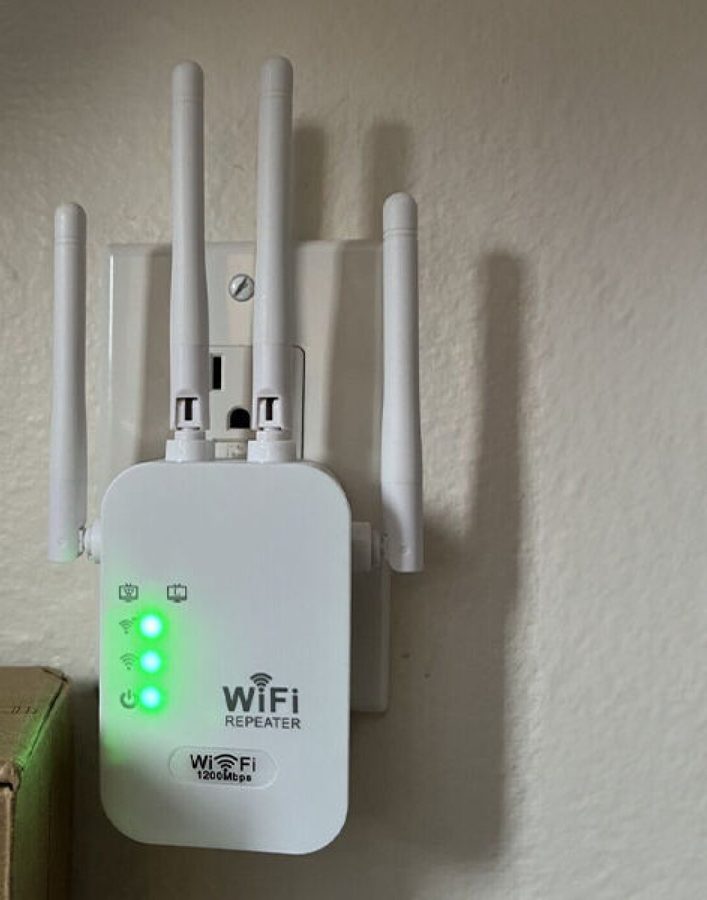
Setup happens in your phone’s WiFi settings, and the brand says no technical experience is needed. It lists a 30-day money-back guarantee and no monthly fees, and says it works with most routers.
The honest limit is the same as for any extender: it can only rebroadcast the signal it receives, so it won’t make a slow internet plan faster. It’s for the back bedroom, porch or basement where the signal fades, not for a connection that’s slow everywhere.
We put it through its paces in our full WiFi Boost Pro review, and line it up against the name brands in our best WiFi extender guide if you’d rather compare before you buy.
See today's WiFi Boost Pro priceA mesh system replaces your router with several matching units spread around the house. They blanket the whole place in one network, and your phone switches between them as you walk around. It’s the best choice for a big or multistory home.
A newer router is worth it if yours is ancient.
Netgear notes that older WiFi 5 devices top out at 867 Mbps, while current WiFi 7 gear is rated far higher. You’ll only see that speed if your internet plan and your devices can use it, so match the router to what you pay for.
12. Keep a backup connection for when the line itself fails

Every fix above assumes the internet coming into your house is healthy. Sometimes it isn’t.
The line is down, the provider is slow to fix it, or you live where the only service is a slow rural connection. No router, extender or booster can create speed that isn’t coming down the wire.
That’s where a portable 4G WiFi hotspot comes in. It’s a completely different tool from an extender: instead of stretching your home WiFi, it creates its own WiFi network from the cell signal, the same way your phone gets online.
The one we point readers to is the Ryoko Pro, a pocket-sized 4G LTE portable WiFi hotspot that connects up to 10 devices at once.
It ships with a SIM and 500MB of starter data, and after that you buy prepaid data starting around $19.99 a month with no contract, so it can sit in a drawer until you need it.

At home, it’s a backup for the day your internet drops and you still need email, the bank website or a video call with the grandkids.
Ryoko lists up to 8 hours of battery on a charge, so it keeps working even when the router can’t.
On the road, it’s what it was built for: your own private WiFi in hotels, RVs and airports, and across borders with no roaming fees. Ryoko says the Ryoko Pro works in up to 175 countries.
It won’t boost your home router or fix a dead bedroom, because its speed comes from the cell signal where you are. Ryoko rates it at up to 150 Mbps, and real-world speed tracks the local network.
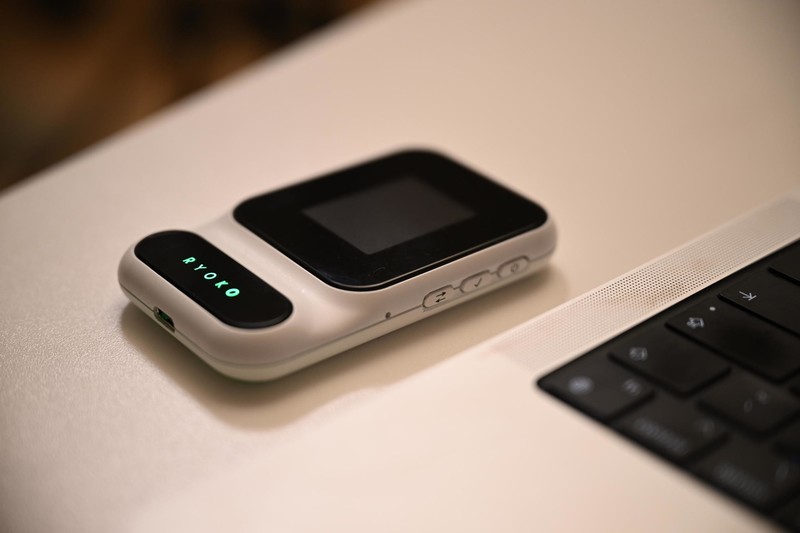
For a spare connection you can grab when the line goes down, it’s a practical piece of insurance.
Our Ryoko Pro review covers the data plans and battery in detail, the best portable WiFi hotspots of 2026 roundup compares it with the alternatives, and Ryoko Pro vs Skyroam Solis goes head to head with its best-known rival.
Check today's Ryoko Pro priceThe short version
If your WiFi is slow, restart the router and modem, then run a speed test next to it and in the slow room. That tells you whether you have a WiFi problem or an internet problem.
For a WiFi problem, move the router into the open, use 5 GHz nearby, pick a quieter channel, and add an extender like the WiFi Boost Pro or a mesh system for dead zones.
For an internet problem, check the cables and call your provider, and keep a Ryoko Pro hotspot on hand so an outage doesn’t cut you off. For more gear guides, browse the tech hub.